Streamlining Payara Micro Development with Dev Mode
Payara

Payara Micro, a lightweight and flexible microservices runtime platform, offers a seamless development experience through its Maven plugin. In this guide, we’ll explore the Dev Mode of Payara Micro Maven plugin, focusing on the dev goal. This goal is tailored to streamline development by enabling various features for an efficient workflow.
Combined, these Dev Mode features foster:
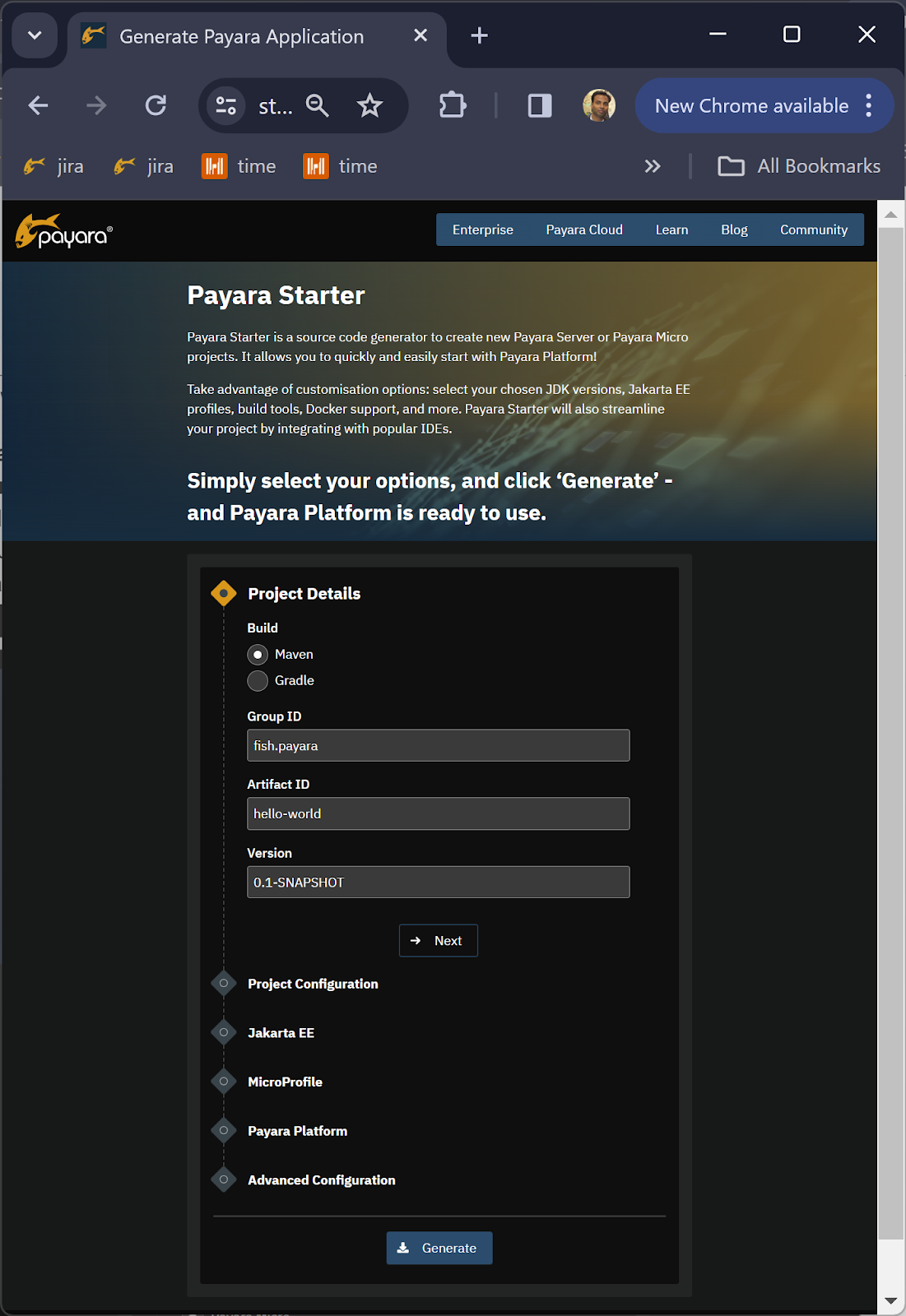
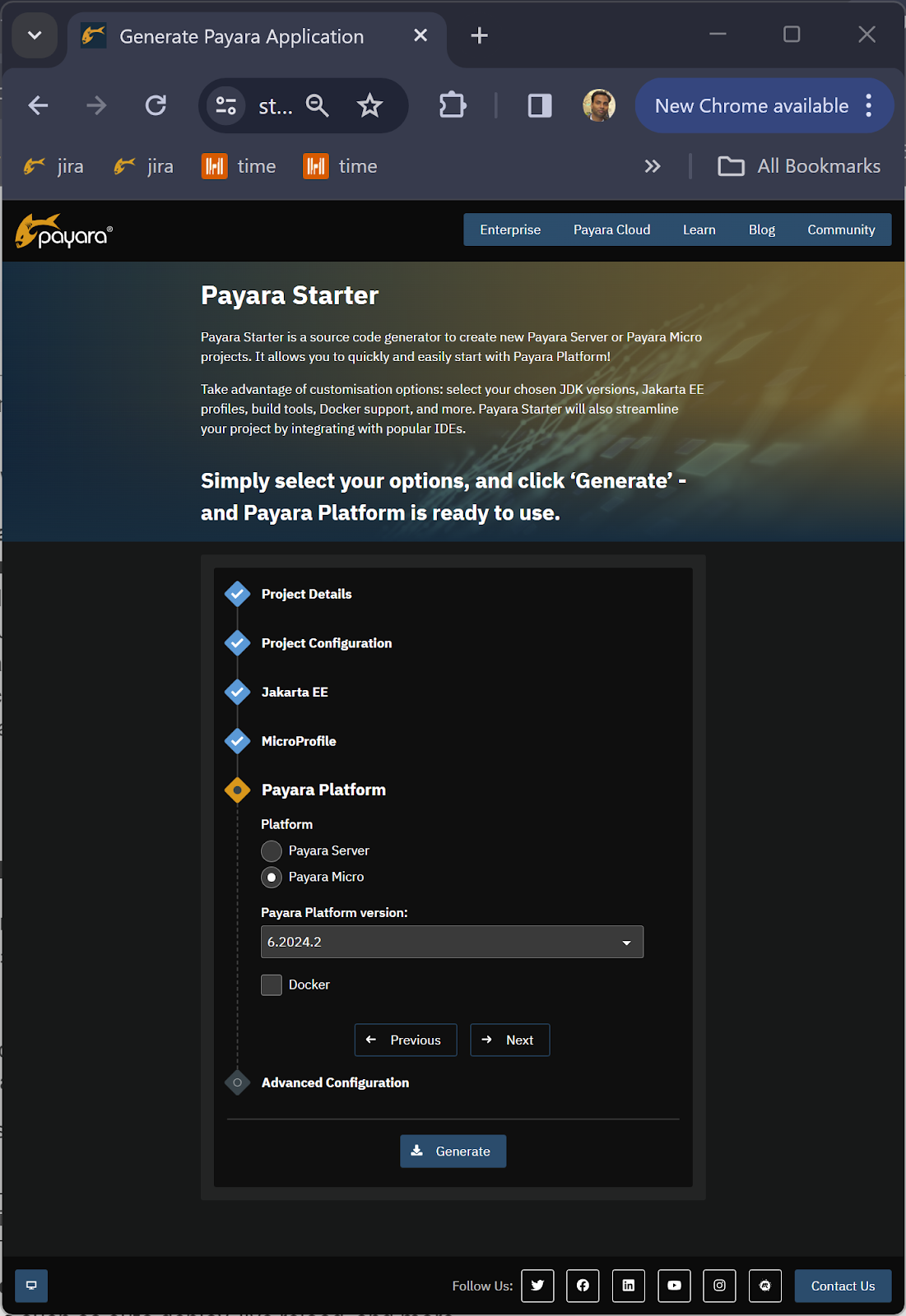
Now that you have your Payara Micro Maven project, follow these steps to build and run it using the mvn package payara-micro:dev command:

IntelliJ IDEA provides a powerful integrated development environment for Java developers. Here’s how you can configure and run your Jakarta EE Web project in IntelliJ:
Open IntelliJ IDEA: Launch IntelliJ IDEA and open your Jakarta EE Maven Web project.
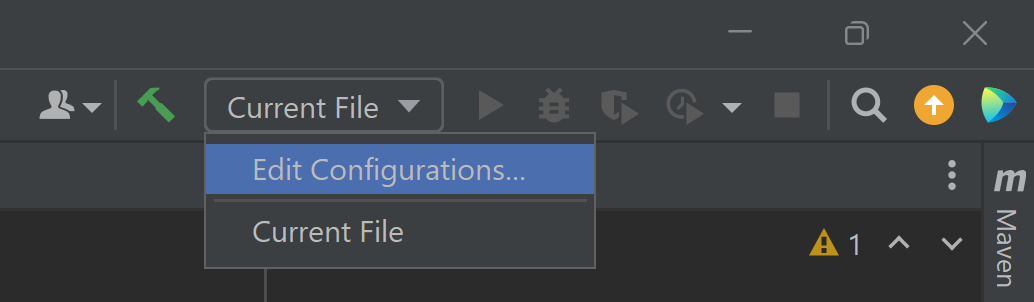
Configure Payara Micro: Navigate to “Edit Configurations” from the top-right corner dropdown menu or by selecting “Run” > “Edit Configurations” from the menu bar.
Add Payara Micro Configuration: Click on the “+” icon and select “Maven” from the dropdown. In the configuration settings, specify the following:
Name: Provide a name for your configuration (e.g., Payara Micro Dev).
Command line: Enter the Maven command to run Payara Micro in dev mode. For Payara Micro Maven plugin upgrade version to 2.2 and use dev goal, use the following command: package fish.payara.maven.plugins:payara-micro-maven-plugin:2.2:dev
Working directory: Set the path to your Payara Micro Maven project directory.
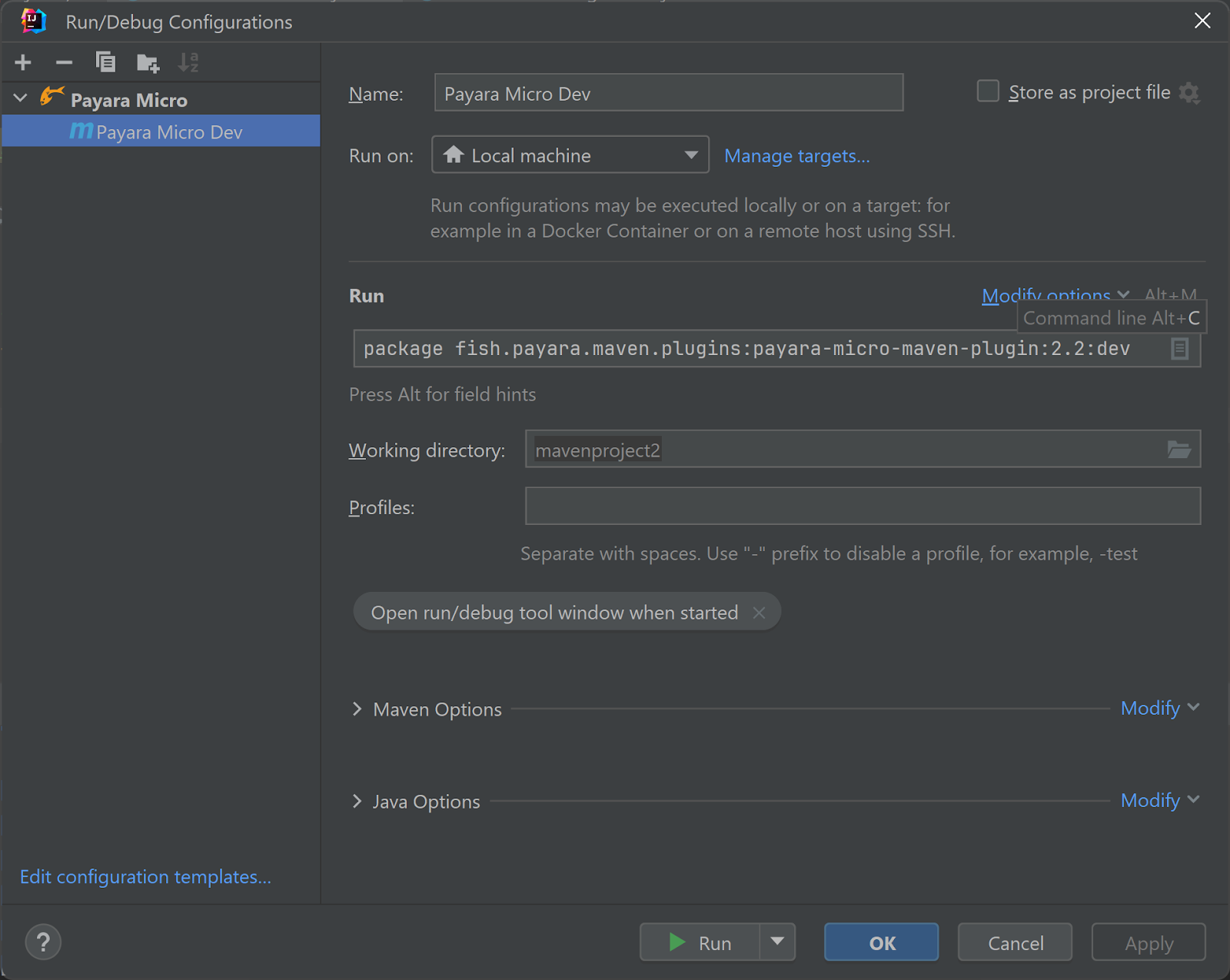
4. Apply Configuration: Click “Apply” to save the configuration settings.
5. Run the Project: Now, simply build and click on the green “Run” icon or select “Run” > “Run ‘Payara Micro Dev'” from the menu bar.
6. Development Mode: IntelliJ will start the project in dev mode using Payara Micro. Any changes made to the source code will trigger auto deployment and live reload.
By following these steps, you can seamlessly build, run, and develop your Payara Micro Maven project in IntelliJ IDEA, leveraging the efficient features provided by the Payara Micro Maven plugin.
Integrating Payara Micro into your Maven projects becomes a breeze with the Payara Micro Maven Plugin. The dev goal, designed for productive development, enhances your workflow with features such as auto-deploy, live-reload and more. For detailed information and comprehensive documentation on the Payara Micro Maven Plugin, please refer to the official Payara documentation: Payara Micro Maven Plugin Documentation, download your Jakarta EE starter here and get productive. Happy Coding!

Share:

 1 minute
Modern high-frequency trading (HFT) platforms operate under extreme performance constraints, processing tens of thousands of messages per second while […]
 1 minute
Earlier this week, we’ve launched the 2026 Payara Platform Community Survey and we’d love to hear from you. If […]
 8 minutes
Jakarta EE applications can take anywhere from several seconds to over a minute to start, depending on their size […]


It would be nice to have these features for Gradle projects alongside Maven.
Can I deploy a jakarta faces app using payara micro?
Yes. Payara Micro supports the Jakarta EE Web Profile Standard. As such, you can deploy your Jakarta Faces web application on it.